How to share Chrome bookmarks with your team
Chrome has no “share this folder” button, and sync only ever shares bookmarks with yourself. Every way of sharing bookmarks with colleagues is a workaround — the right one depends on whether you need a one-time copy or a folder the whole team keeps using.
Last updated
Quick answer
For a one-time copy: select the bookmarks in the Bookmark manager (Ctrl+Shift+O), press Ctrl+C (Cmd+C), and paste the links into a message — or export the whole library as an HTML file. For a folder that stays up to date for everyone, you need Google Workspace managed bookmarks (admins only, read-only) or a shared bookmark tool.
- Open the Bookmark manager: press Ctrl+Shift+O (Cmd+Shift+O on Mac) or go to chrome://bookmarks.
- Open the folder you want to share and select the bookmarks: click the first, then Shift-click the last (or Ctrl/Cmd-click individual ones).
- Press Ctrl+C (Cmd+C on Mac) to copy their URLs.
- Paste into Slack, email or a doc — each bookmark arrives as a URL on its own line.
Option 1: Copy and paste the links
The quickest route for a handful of links going to one person. The downside is that it's a snapshot: the titles and folders don't come across, and nothing you add later will reach them.
Option 2: Export an HTML file
Bookmark manager → three-dot menu → Export bookmarks creates one file with every bookmark and folder. The recipient imports it via Bookmark manager → Import bookmarks. Chrome always exports everything, so delete the folders you don't want to share from the file first. Like copy-paste, it's a one-time copy that starts going stale immediately.
Option 3: Google Workspace managed bookmarks
If your company manages Chrome through Google Workspace, an admin can push a folder of bookmarks to everyone's browser from the Admin console (the “Managed bookmarks” setting under Chrome user settings). It's live and centrally updated — but only admins can change it, users can't add to it, and it only reaches managed Chrome profiles.
- Good for: a small, stable set of company-wide links (HR portal, IT help, expenses)
- Not good for: project or team links that change weekly, or anything non-admins should edit
Option 4: A shared workspace outside the browser
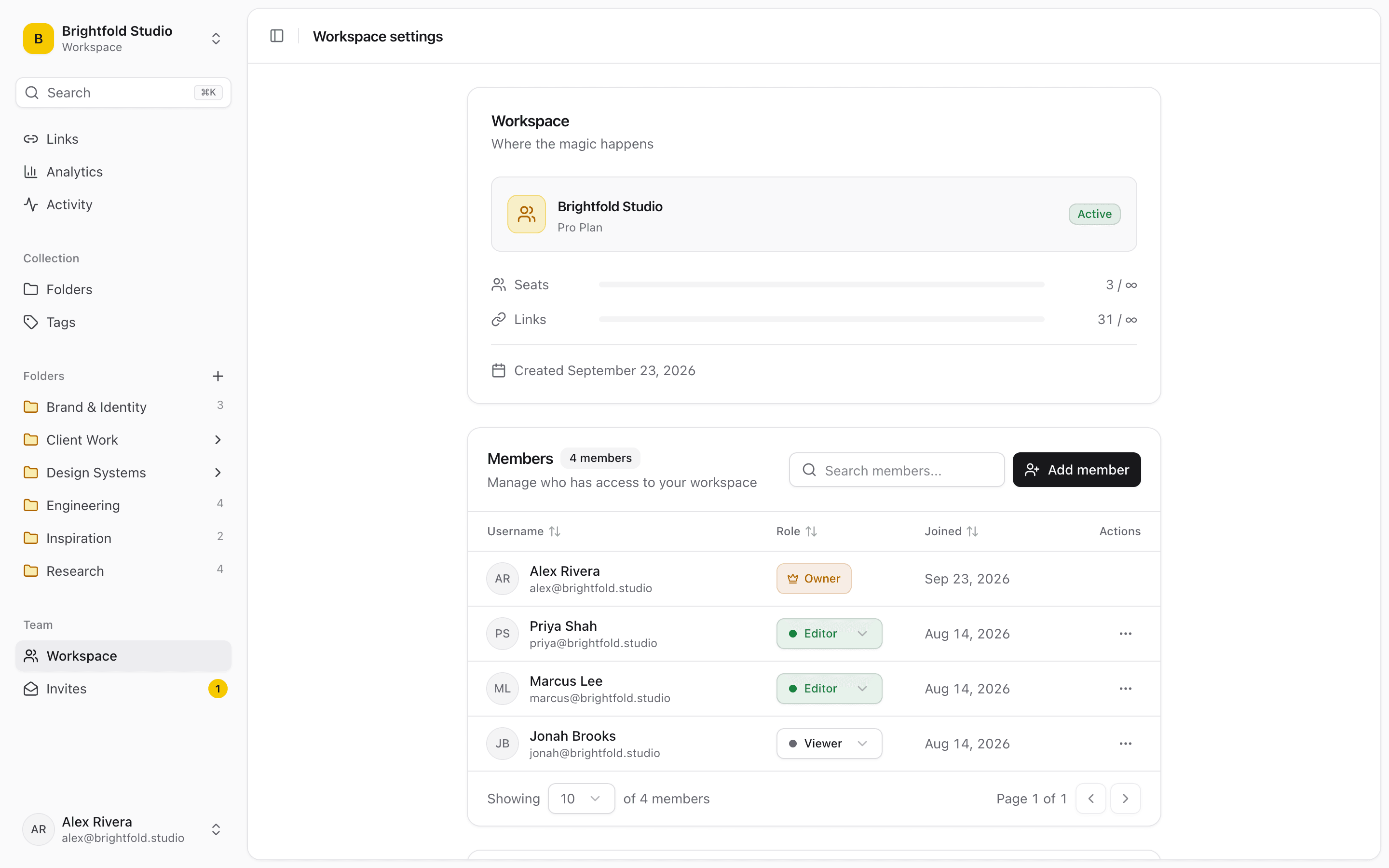
When a team needs a folder that everyone can see, search and add to, the bookmarks need to live somewhere shared rather than in each person's Chrome profile. That's the job a shared bookmark manager does: one library, updated in real time, with roles controlling who can edit.
- Everyone sees the same folders the moment a link is added
- Roles decide who can add and organize versus only read
- Searchable by title, URL, description and note, instead of scrolling a bar
- Some tools, including Linkbry, can also publish a folder as a read-only link for people outside the team
How Linkbry handles it
Linkbry is a shared link library built for exactly this: a team workspace with owner, editor and viewer roles, where viewers are free and unlimited. Teammates save pages from the Chrome extension in one click, and type ;; in Slack, Gmail or Notion to insert any saved link without opening a tab. To get started, import your Chrome bookmarks export — nested folders and tags are kept and duplicates skipped — and share any folder with people outside the team as a read-only link, no account needed.
Frequently asked questions
Not natively. Chrome has no sharing for bookmark folders — sync only shares bookmarks between your own devices. You can copy the links or export a file (one-time copies), use Google Workspace managed bookmarks if you're an admin, or use a shared bookmark tool.
Export them: Bookmark manager (Ctrl+Shift+O) → three-dot menu → Export bookmarks. Send the HTML file; they import it with Bookmark manager → three-dot menu → Import bookmarks.
Yes, if your organization uses Google Workspace or Chrome Enterprise: an admin can set managed bookmarks in the Admin console, which appear as a read-only folder in every managed user's Chrome.
Not with copy-paste or an exported file. Managed bookmarks update when an admin changes them. A shared workspace tool updates for everyone as soon as anyone with edit access adds a link.
Start organizing your links today
Free forever for one person. No credit card needed.