Chrome's bookmark manager, and what it can't do
Chrome's bookmark manager is the full-page view behind the bookmarks bar — folders, drag-to-reorder, and a search box, all built into the browser with nothing to install. It's a genuinely useful tool for a small library, and it plateaus fast once that library grows.
Last updated
Quick answer
Press Ctrl+Shift+O (Cmd+Shift+O on Mac), or type chrome://bookmarks into the address bar. It handles folders, search by title/URL, and import/export — but not tags, notes or sharing.
Opening it
Three ways in: the three-dot menu → Bookmarks and lists → Bookmark manager, typing chrome://bookmarks into the address bar, or the shortcut Ctrl+Shift+O (Cmd+Shift+O on Mac).
What it handles well
For a library in the low hundreds, it's genuinely fine — folders, drag-and-drop reordering, a search box, and export/import, all with zero setup and no account beyond the Chrome sign-in you already have.
- Nested folders, dragged and dropped to reorganize
- A search box that matches page titles and URLs
- One-click export and import as an HTML file
- Synced across devices automatically via your Google account
Where it stops working
The limits aren't bugs, they're the tradeoffs of a feature built into a browser rather than sold as a product. They start to matter once a library is something you search rather than skim.
- No tags — a link lives in exactly one folder, never two
- Search matches titles and URLs only, so a page titled “Docs” is hard to find
- No way to add a note explaining why you saved something
- Sharing means copying URLs one at a time into a message
- No visibility into which bookmarks you actually revisit
Choosing a bookmark manager extension for Chrome
Most people searching for a “bookmark manager extension” want one of four things Chrome lacks. Decide which matters most — it narrows the field quickly.
- Tags and notes — almost every dedicated manager has these; Chrome doesn't
- Import that keeps your folders — check it reads Chrome's HTML export with nesting intact
- Full-text or page-content search — check whether it's on the free plan (Raindrop.io puts it in Pro)
- Full-page archiving against link rot — Linkwarden's specialty; Linkbry doesn't archive pages
- Team sharing with roles — Linkbry is built around one shared workspace with free viewers; most tools share collection by collection
When the bookmarks belong to a team
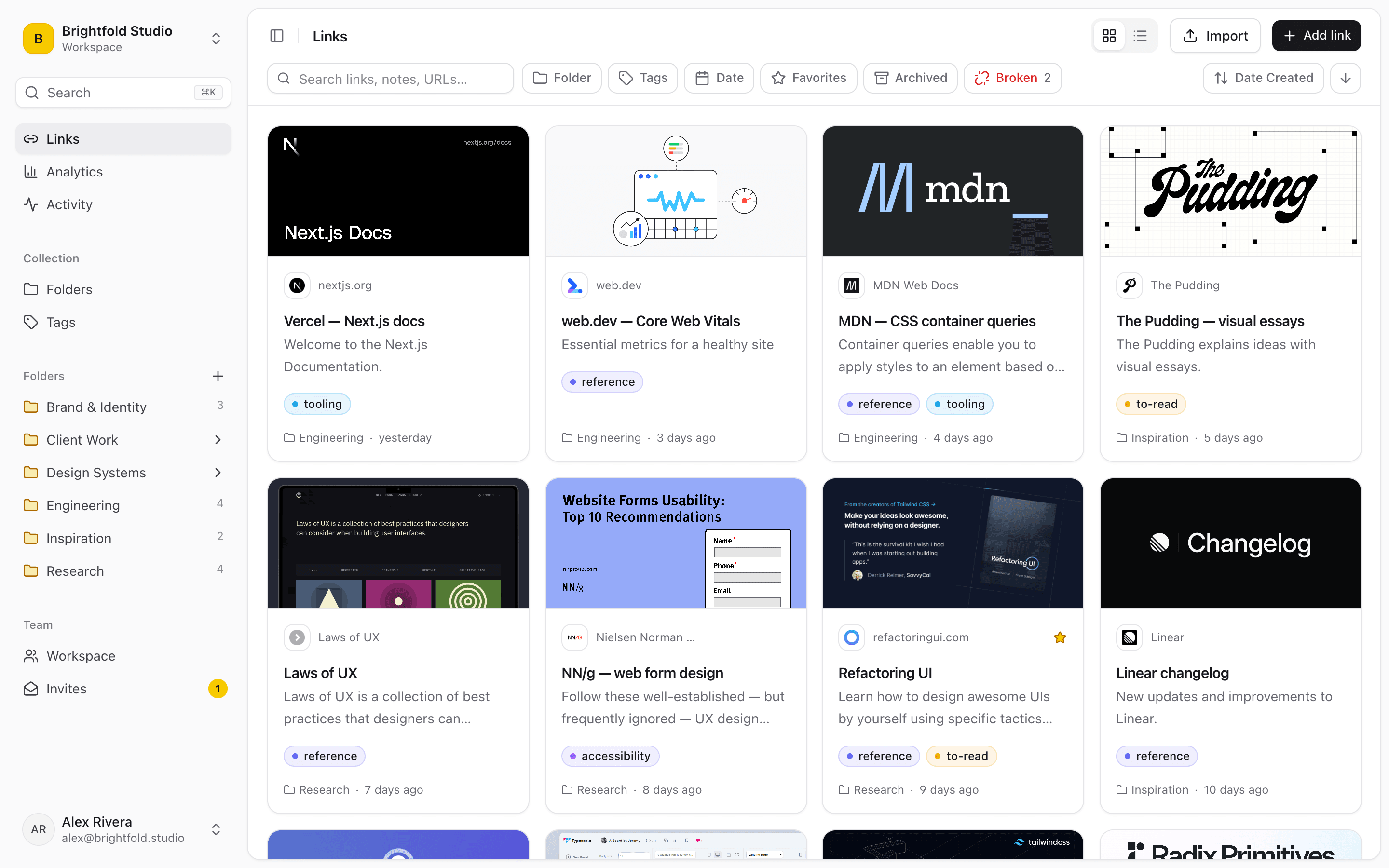
For the links your team shares, Linkbry adds the layer Chrome's manager doesn't have: multi-tag filtering, a note on every link, a shared workspace with owner, editor and viewer roles, read-only share links for people outside the team, automatic broken-link checks, and analytics showing which links teammates actually open. Import your Chrome bookmarks and the folders come across intact.
Frequently asked questions
Ctrl+Shift+O on Windows, Linux and Chromebook, Cmd+Shift+O on Mac. Typing chrome://bookmarks into the address bar gets you there just as fast.
No. Chrome organizes bookmarks by folder only — a link can live in one folder, not several categories at once. Tagging requires a separate bookmark manager.
No — Chrome's built-in search only matches bookmark titles and URLs. Tools with page-content indexing (such as Raindrop.io Pro, Linkwarden and Karakeep) can search inside saved pages.
Start organizing your links today
Free forever for one person. No credit card needed.